
Discover, enrich, organize, verify, export.
The same five steps on Google Maps and Bing Maps, from a search to an exported prospect list. Discovery and verification are separate so you only pay for certainty when you need it. Screenshots show example business data.
-
Choose a Maps source
Open Google Maps (manual edition) or Bing Maps (store edition) and search as you normally would. The ProspectChief panel appears on the page with the product name in its header.
Google: manual installBing: Chrome Web Store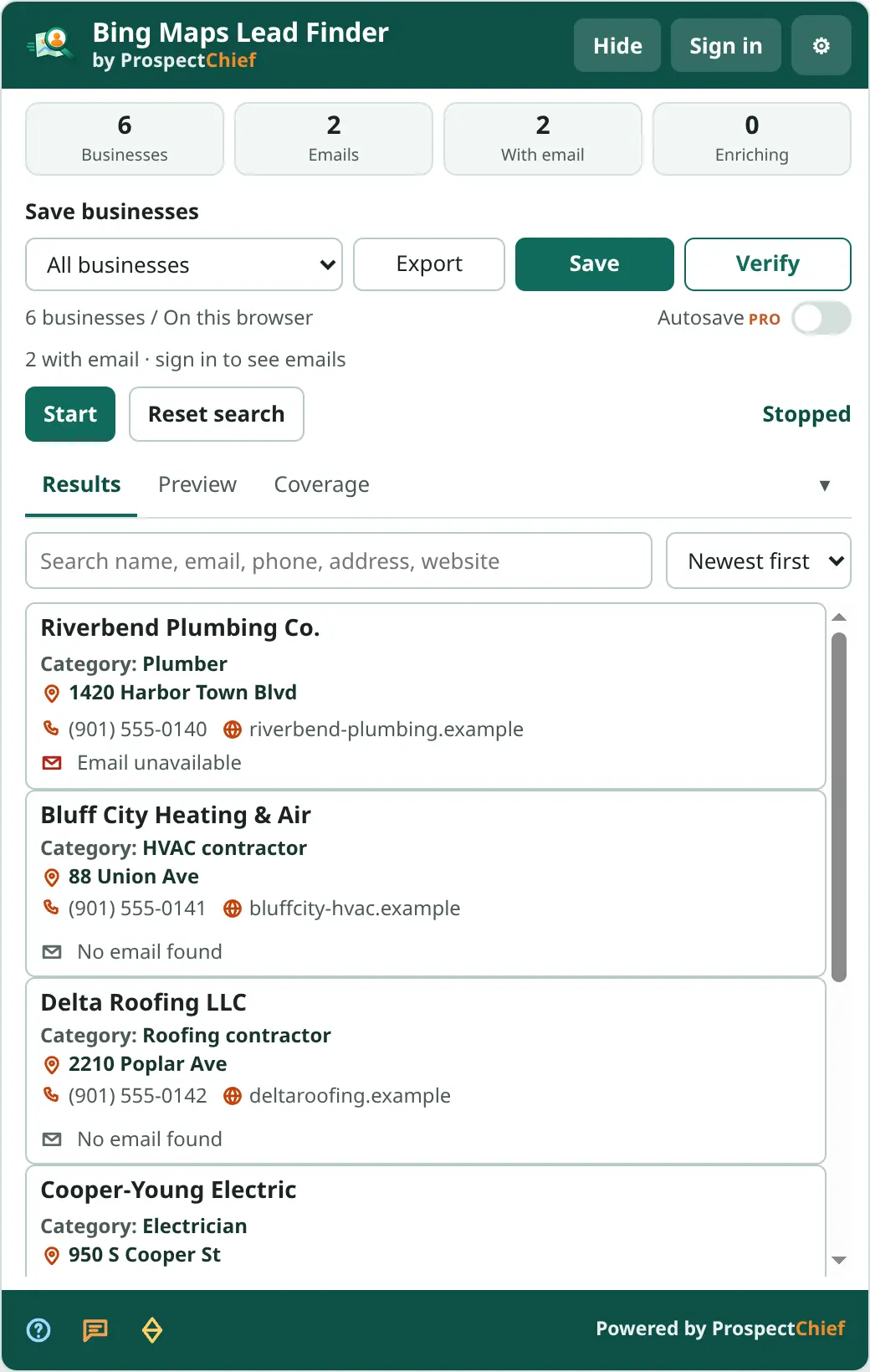
Bing Maps Lead Finder on Bing Maps -
Capture businesses
Press Start and businesses are recorded as you browse the results. Maps Pro adds an optional, bounded Auto-scroll that advances the Google or Bing list for you until its real end. Identity comes from the platform's listing ID, so nothing is merged by name or domain.
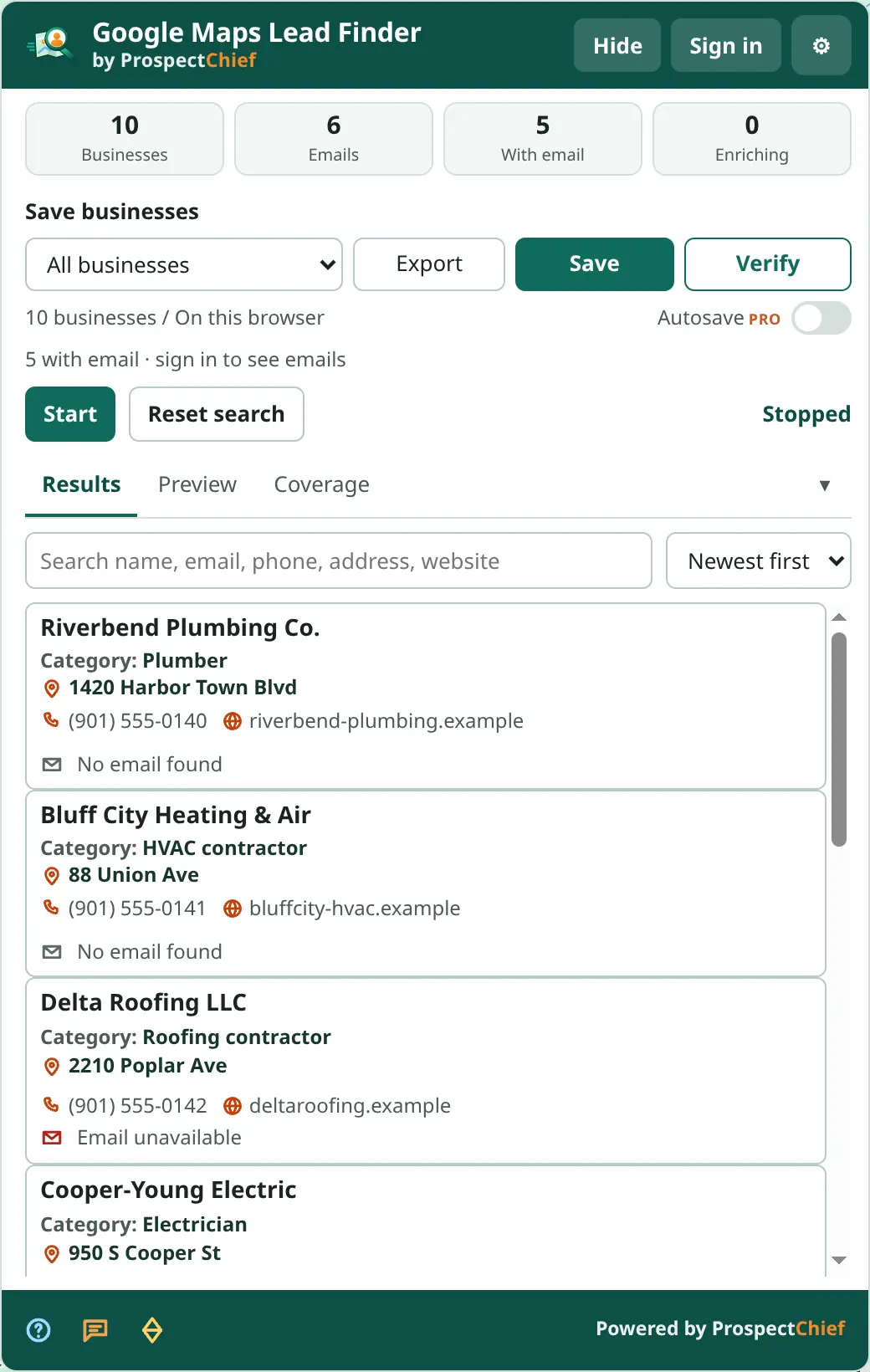
Google Maps Lead Finder after a capture -
Scan websites for contacts
Each business website is checked for contact pages, emails, phones and social profiles. Every email is stored with the page it was found on, and each website scan shows its status. Domain intelligence shows the mail provider behind each address.
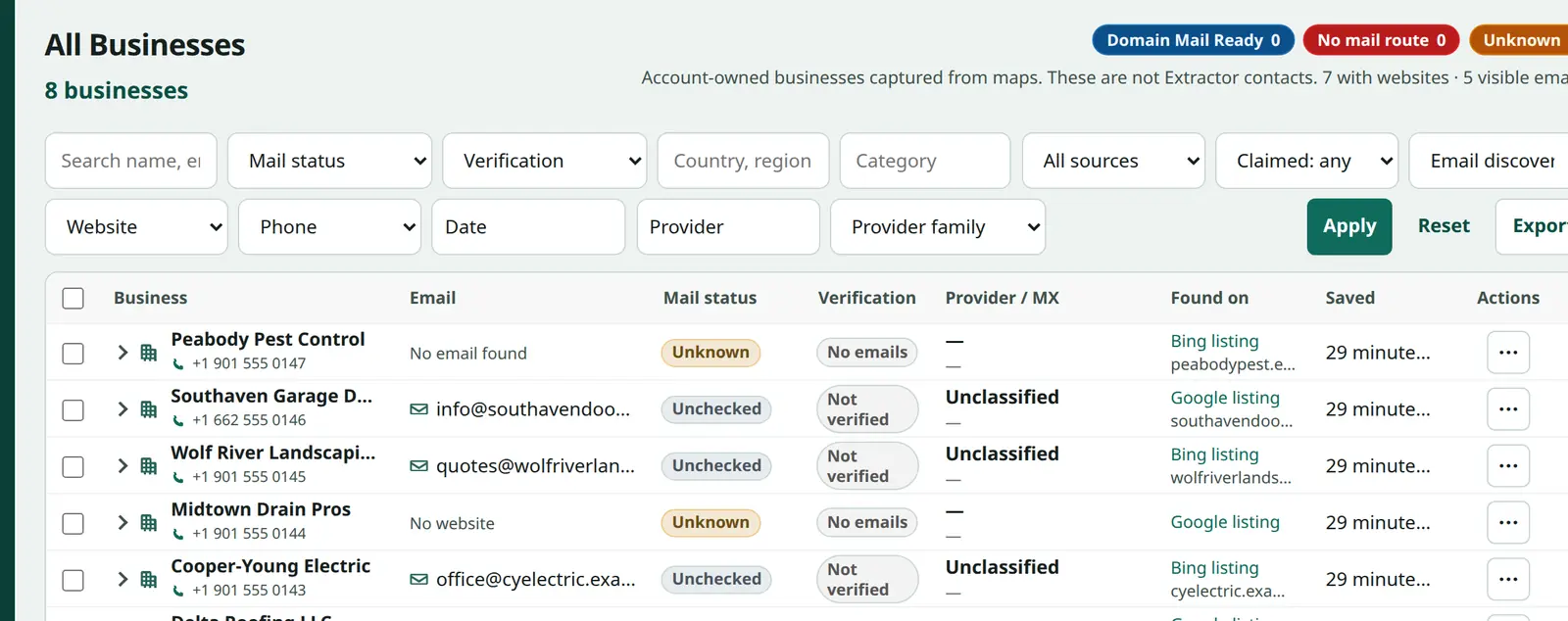
Discovered emails and mail status in the dashboard -
Save to All businesses or a project
All businesses is the default. Projects are optional folders (3 on Free, 100 on Pro). Guest data on this browser survives signing in.
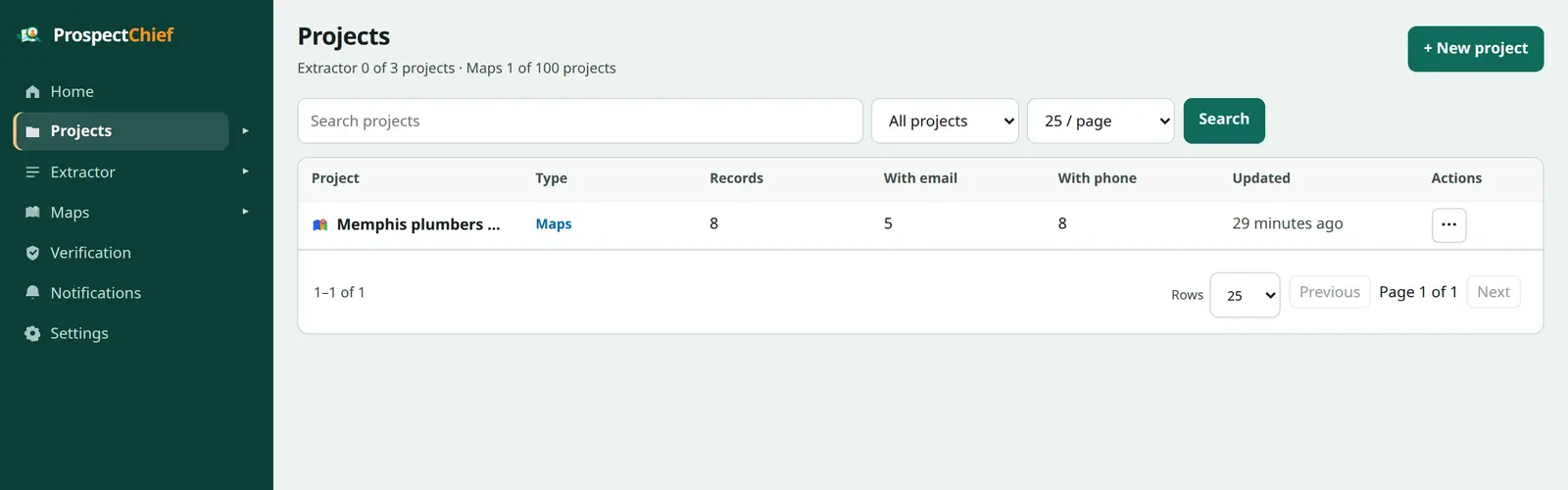
Projects in the dashboard -
Verify and export
Optionally verify mailboxes with credits, then export CSV or XLSX with the same columns from every source — Source, Claimed, identifiers and all.
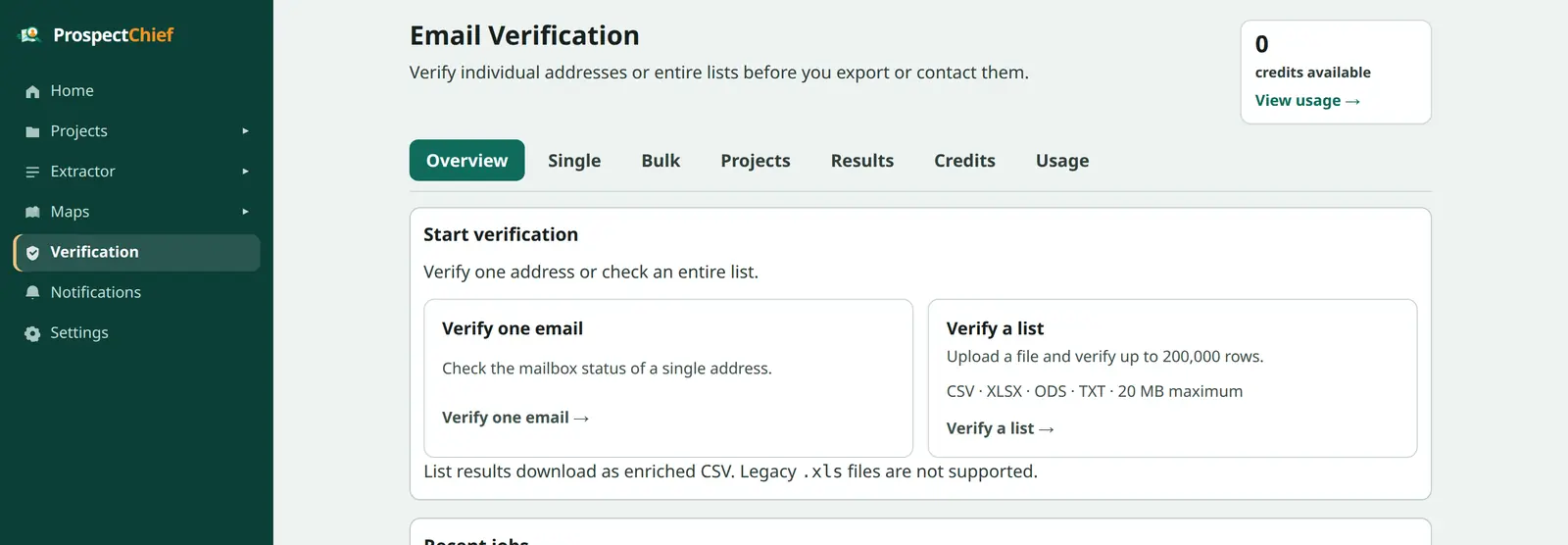
Email Verification in the dashboard