
Install Google Maps Lead Finder (manual package)
About five minutes. You need Chrome 120 or newer on a desktop computer. The Google Maps edition is implemented and browser-tested locally; the public download opens only after the platform-policy and security review (release gate G4) is approved.
Where to download. Only from prospectchief.com/download/google-maps/. Never install a ZIP from anywhere else, and never install one whose checksum does not match.
Step 1 — Download and verify
Download prospectchief-google-maps-lead-finder-v<version>.zip. Compare its SHA-256 with the value on the download page:
# macOS / Linux
sha256sum prospectchief-google-maps-lead-finder-v0.3.13.zip

# Windows (PowerShell or Command Prompt)
certutil -hashfile prospectchief-google-maps-lead-finder-v0.3.13.zip SHA256
Step 2 — Unzip to a permanent folder
Extract the ZIP somewhere you will not delete, for example Documents/ProspectChief/google-maps-lead-finder. The folder must contain manifest.json directly. Chrome loads the extension from this folder every time it starts, so do not move it afterwards.
Step 3 — Enable Developer mode
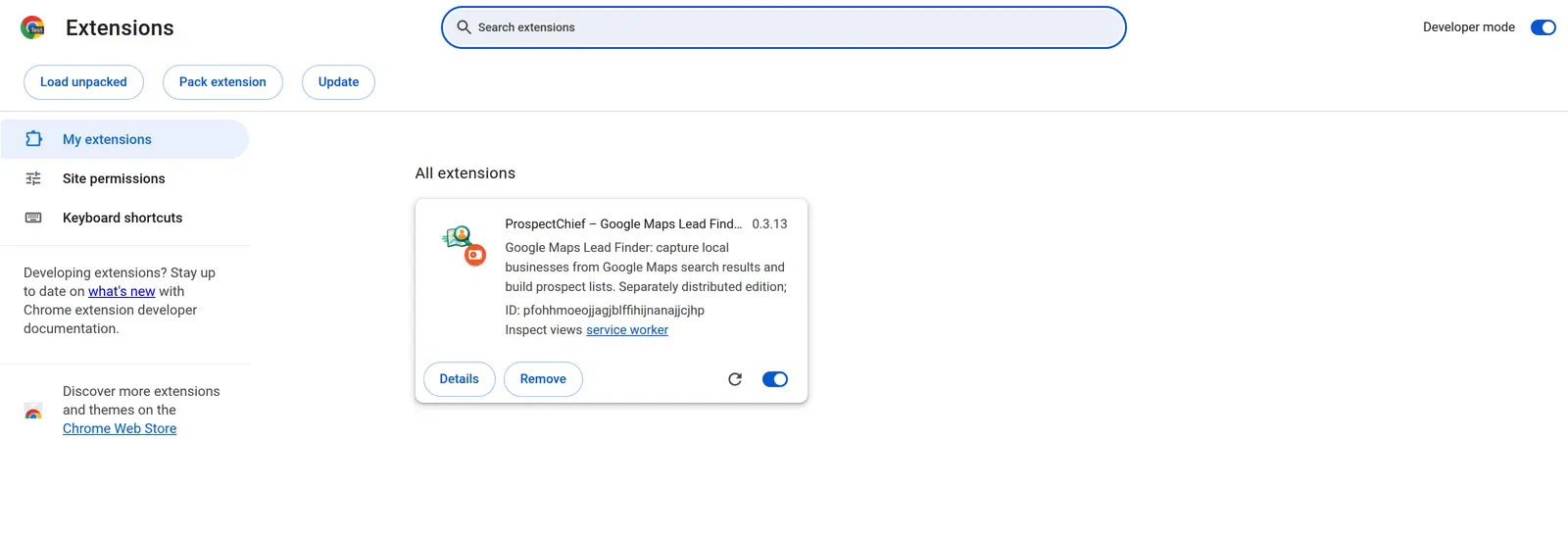
Open chrome://extensions in a new tab and switch on Developer mode (top right).
Step 4 — Load unpacked
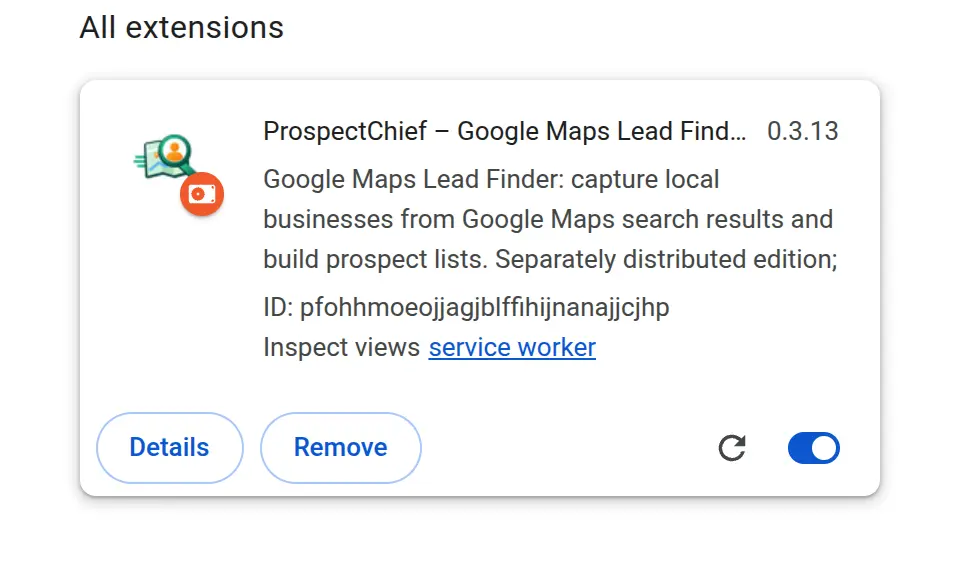
Click Load unpacked and choose the folder from step 2. “ProspectChief – Google Maps Lead Finder” appears in the list. Pin it from the puzzle-piece menu.
Step 5 — First capture
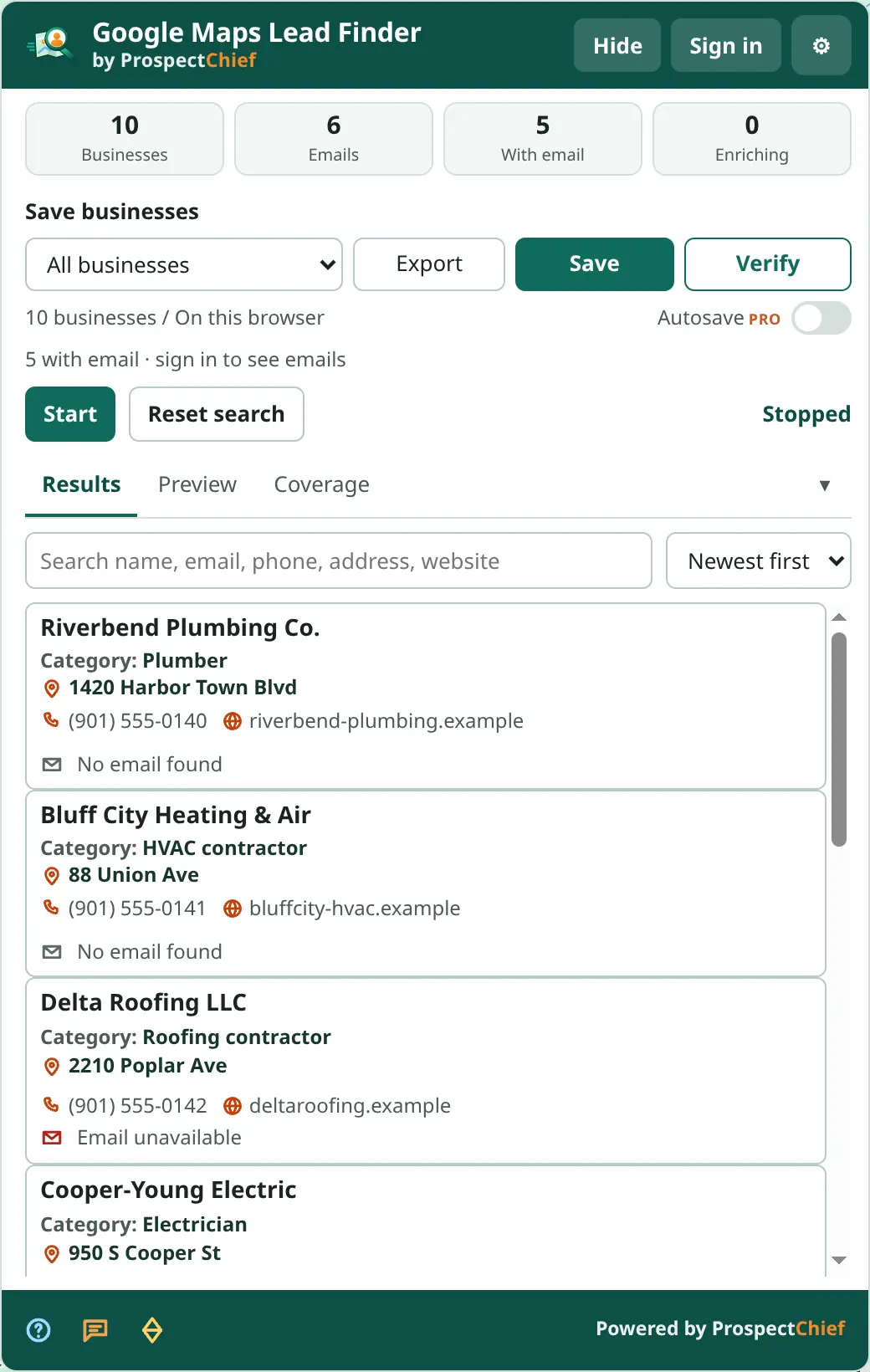
Open Google Maps, search for a category and place, and press Start in the panel. The feed scrolls at a measured pace; the status line shows “Capturing results”, “Waiting for more results” and finally “End of results”. Press Save or Export.
Troubleshooting
- “Manifest file is missing or unreadable” — you selected the parent folder. Choose the folder that contains
manifest.json. - Panel does not appear on Google Maps — reload the Maps tab after loading the extension. Make sure the folder was not moved or deleted.
- Chrome shows “Disable developer mode extensions” — this is standard for manually installed extensions. Keeping Developer mode on is required.
- Results stop increasing — Google is still loading or has reached the end; the status tells you which. Use Retry if the feed stalls, or Stop.
- Multiple Google country domains — the package matches
google.com/mapsand the country domains (google.co.uk/maps,google.de/maps, …).
Updating later
Manual packages do not auto-update. See Google Maps updates.